How to Update Credit Card - GeoArm Security®
▼ Update Credit Card on File (View PDF) ▼
Step 1: Proceed to Billing Portal
Existing customer? CLICK HERE to access GeoArm's Billing Portal and update the credit card associated with your account, view billing history, and manage your subscription.
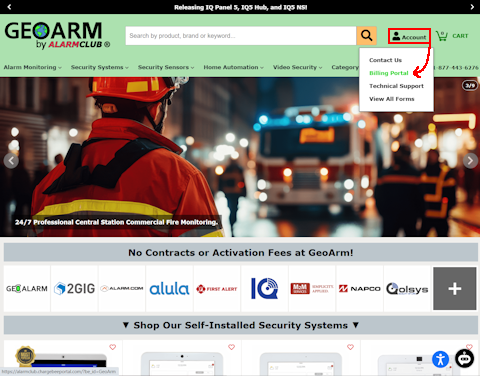
Or, you can also access the Billing Portal from any page on our website by hovering over the Account icon located in the upper-right corner of the header and selecting Billing Portal (the second option) from the drop-down menu.
Or, you can also access the Billing Portal from any page on our website by hovering over the Account icon located in the upper-right corner of the header and selecting Billing Portal (the second option) from the drop-down menu.
Step 2: Enter Email Address
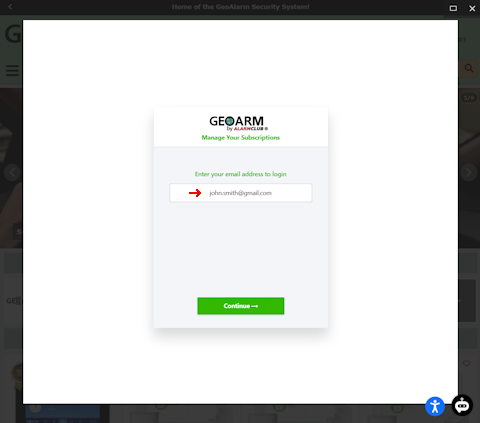
Enter the Email Address associated with your GeoArm billing account in the field below, then click the Continue button.
If you do not remember the email address associated with your account and receive the "Looks like you don't have an account with us" invalid email error message when attempting to log in, please contact our support team. We will help you locate the email address on file so you can access your billing portal.
By Email: support@geoalarm.com
By Phone: 1-877-443-6276 (Mon-Fri, 8:30 AM-7:00 PM EST)
If you do not remember the email address associated with your account and receive the "Looks like you don't have an account with us" invalid email error message when attempting to log in, please contact our support team. We will help you locate the email address on file so you can access your billing portal.
By Email: support@geoalarm.com
By Phone: 1-877-443-6276 (Mon-Fri, 8:30 AM-7:00 PM EST)
Step 3: Enter One-Time Password
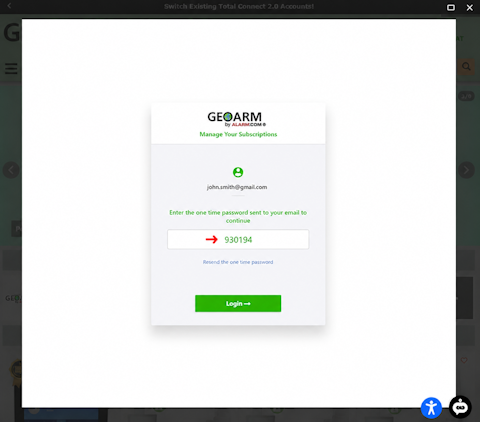
To access your GeoArm Customer Portal and manage your GeoArm monitoring subscription, enter the One-Time Password (OTP) that was sent to your email address. This secure verification process helps protect your account while providing convenient access to view billing details, update payment methods, download invoices, and manage your subscription settings.
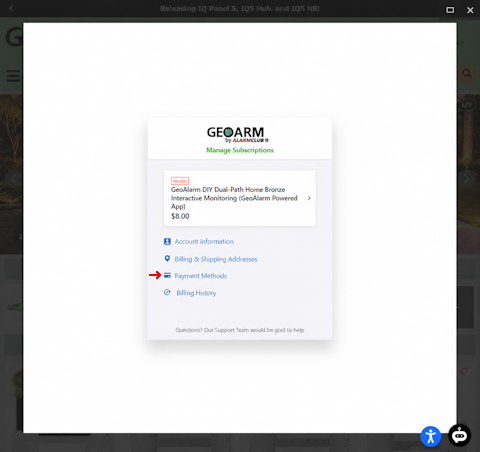
Step 4: Update Payment Method
To update the payment method on file, click Payment Methods in the GeoArm Customer Billing Portal. From there, you can securely add or update your credit card or bank account information to help ensure your subscription billing continues without interruption. If you have multiple subscriptions for different locations, be sure to select the correct subscription before making changes to ensure the updated payment method is applied to the intended account.
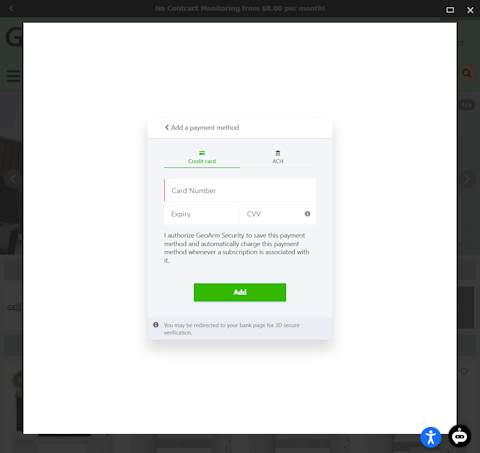
Step 5: Enter Credit Card Info
Enter your new credit card information, including the Card Number, Expiration Date, and CVV/Security Code, in the designated fields. Once all information has been entered and reviewed for accuracy, click the Update button to securely save your new credit card on file. Your updated credit card will be used for future subscription billing and invoice payments.